How to use TabbyGato.
Add your songs, loop the part that trips you up, slow it down and speed back up until you can play along with the band.
-
Add your songs
Bring the songs you already have.
Press Open file to open one song, or drop the file anywhere on the TabbyGato window. Add a folder brings in a whole folder at once, gives each folder its own shelf and suggests labels like Rhythm and Scales. To practice with a video, press Add a YouTube link and paste the video's link.
A tab folder on your computer
- From my teacherFolder
- 00_Level 1-Whole, Half, Quarter.gpGuitar Pro
- 03_Level 4-Half, Quarter, 8th Rests.gpGuitar Pro
- 10-10- A Minor Pentatonic Variations.gpxGuitar Pro
- Lesson 6 worksheet.gpGuitar Pro
- Saved tabsFolder
- 12 bar blues in A.gp5Guitar Pro
- chaaya-and-the-stars.gpGuitar Pro
- whisker-walk (1).gpGuitar Pro
- 2024_3_26 strumming.gpGuitar Pro
- 4_9.gpGuitar Pro
- E minor scale_2 octaves.gpGuitar Pro
- Lesson notes.pdfPDF
11 files in 3 folders
The same songs in TabbyGato
What do you want to practice?
Sample songs
4 songs- Whisker WalkSimple
- Chaaya and the StarsMedium
- Gato Goes to HollywoodMedium
- Laisse le fromageAdvanced
TabbyGato never moves or changes your files. The shelves and labels live inside the app.
-
Practice a tab
Loop the hard bars, then speed them up.
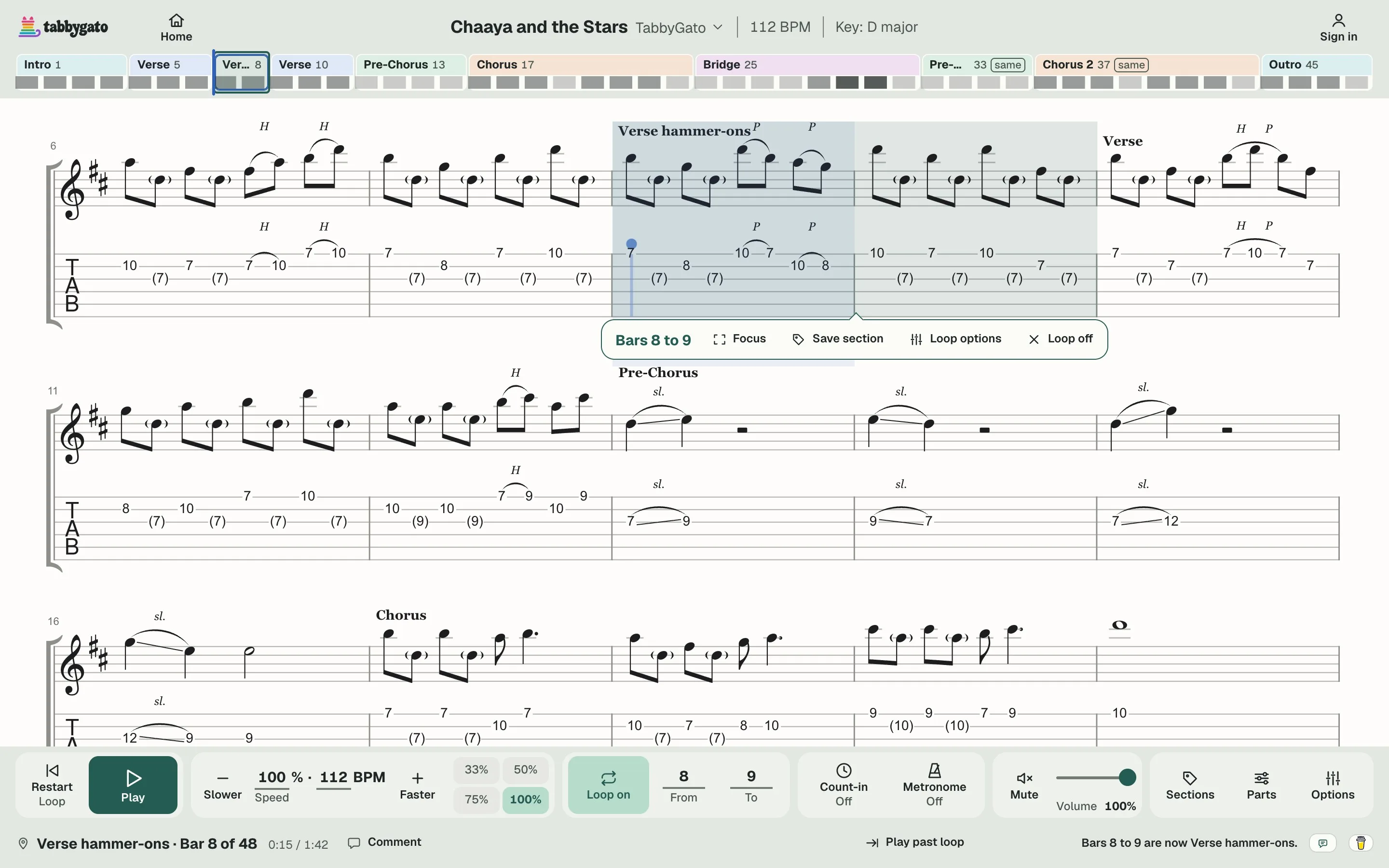
- Press Play to hear every instrument. The colored song map across the top shows each section.
- Drag across the bars that trip you up to loop them. Press Save section to keep the loop under a name like "Verse hammer-ons". Press Focus to see only the looped bars, and press Whole song to see the rest again.
- Pick a speed of 50% or 75%, or press Slower and Faster for small steps. In Loop options, set Speed up each time round to +2%, +5% or +10%. Each time round of the loop then plays faster than the one before, by the step you picked.
- Turn on the Metronome for a click, and set the written count under the tab to Beats, Eighths or Sixteenths.
- Open Parts and press Mute on your guitar part. The other instruments keep playing, and you play the guitar part yourself.
See the full screen -
Practice a recording
Slow down a recording or a YouTube video.
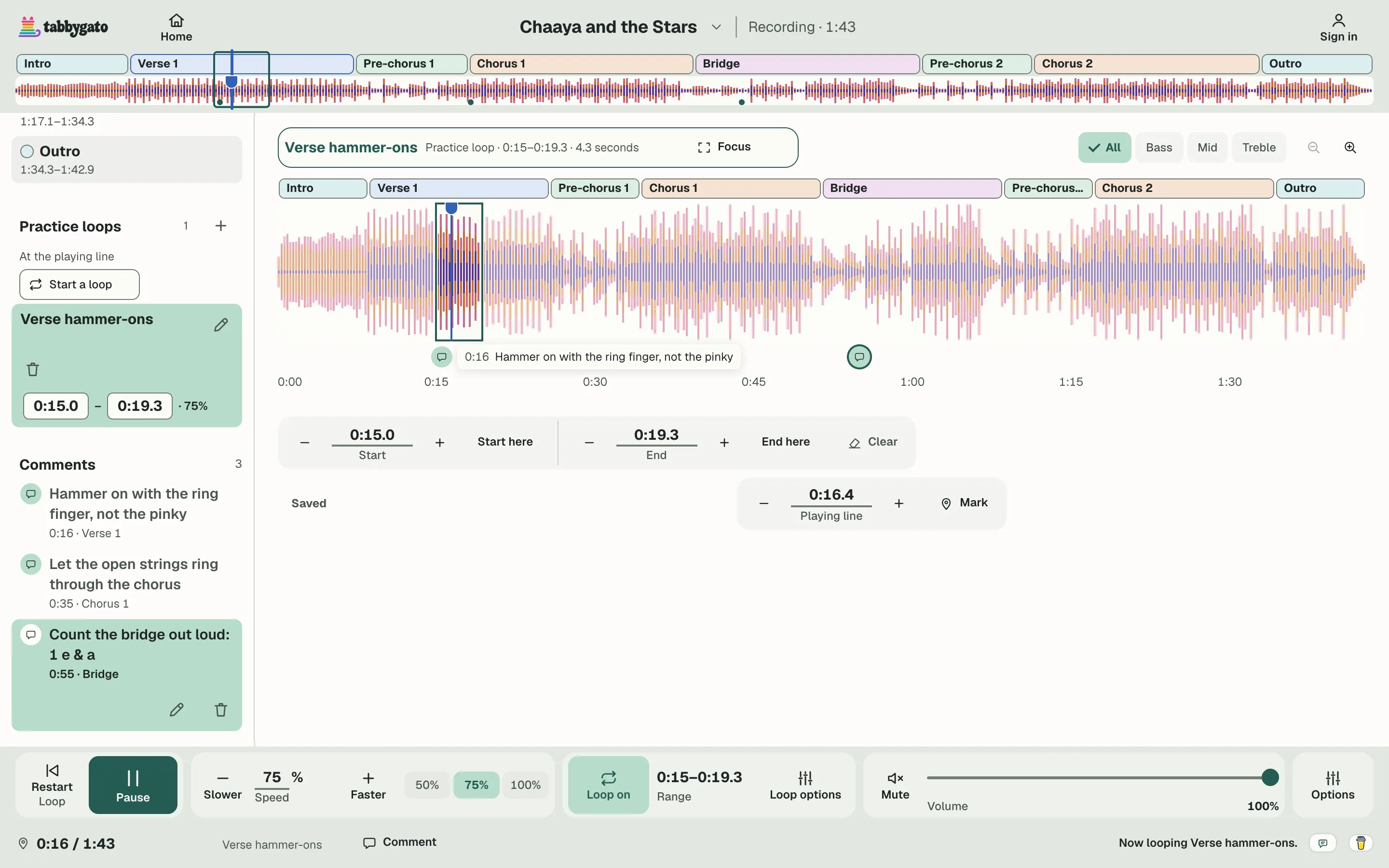
- Press Open file and choose an .mp3, .wav or .m4a file, or press Add a YouTube link and paste the video's link.
- As the song plays, press Verse, Chorus or another section's name, and TabbyGato colors that section on the strip above the recording.
- Drag across the part that trips you up, then press Loop off to turn the loop on. The button then reads Loop on. Slow the loop to 75% or 50%, then press Save practice loop to keep the loop at that speed.
- Write a comment at the spot that trips you up, such as "Hammer on with the ring finger." The comment pops up each time the song plays past that spot.
A recording opens on its own screen, so a recording doesn't follow the bars of your tab yet.
See the full screen -
Pick up later
Pick up where you left off.
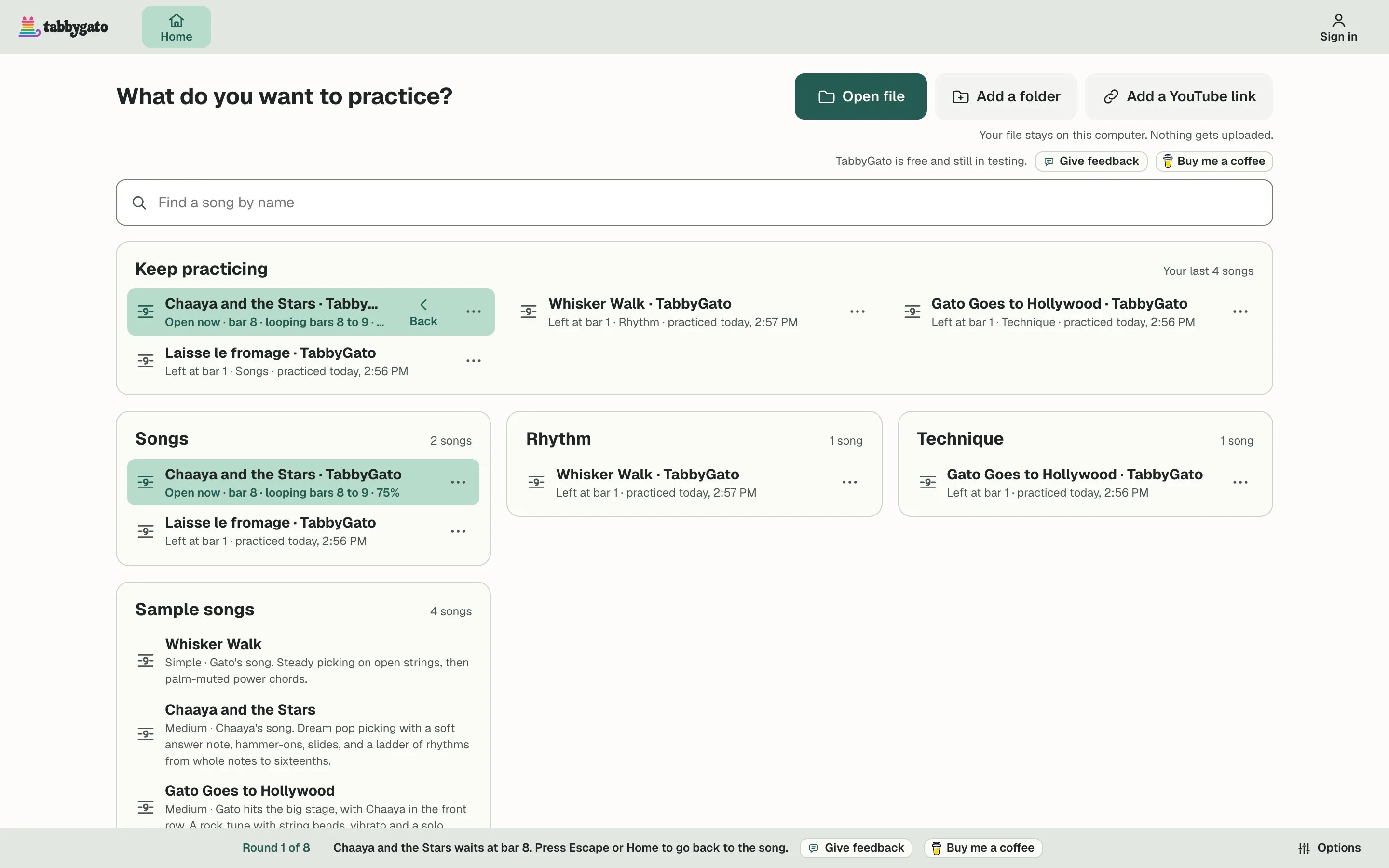
Keep practicing on Home reopens each song at the bar where you stopped, with its loop and its speed. A free account keeps your practice notes on every device you use.
See the full screen
For a whole practice plan, read How to learn a song on guitar from a recording or YouTube video or Got a Guitar Pro file from your teacher?