Written for beginner and intermediate players. Last updated November 18, 2026.
How do I learn a song from a recording?
Follow these eight steps, from the first listen to full speed.
- Listen once, all the way through. Keep the guitar on your lap and only listen. Headphones help you hear the guitar under the singing and the drums.
- Check your tuning. Play your open low E string along with the recording. If every note sounds a little off, the band may tune lower than standard, or the guitarist may use a capo. Jimi Hendrix and Stevie Ray Vaughan, for example, tuned every string a half step down. Search the song's name with the word "tuning" or "capo".
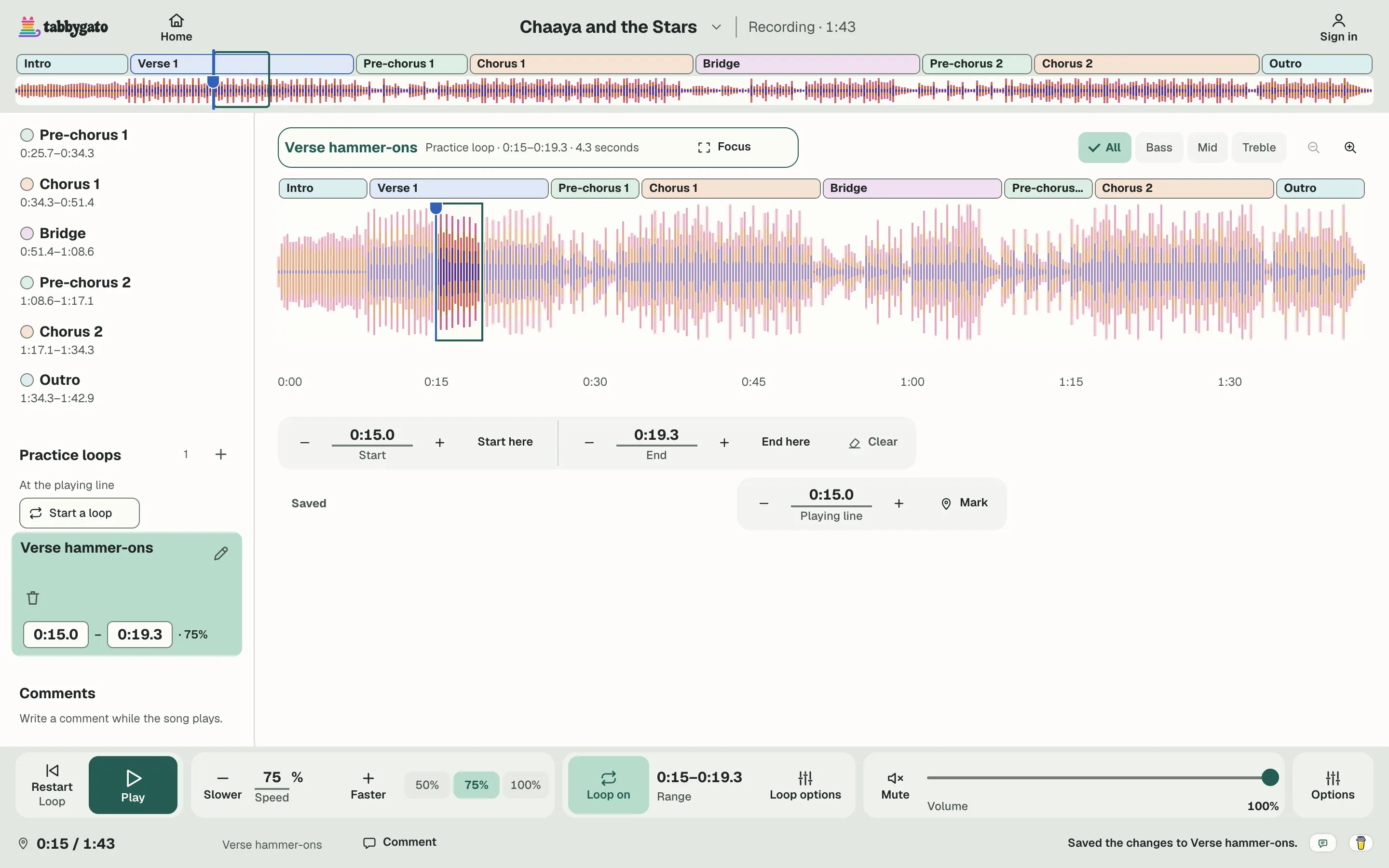
- Map the song's sections. Write down the time where each section starts, such as Intro 0:00, Verse 0:18, Chorus 0:52. A new section often starts where the singing stops or the drums change.
- Learn the main riff or chords first. A riff is a short guitar pattern that repeats. Learn the part that comes back most, so you can play along with the recording early on.
- Loop the hardest few seconds. Spend most of each practice on the spot that sounds hardest, such as a run (a quick string of single notes). Start the loop a beat before the hard spot, so you come into the hard notes in time.
- Slow the loop down and work out the notes. Set the loop to 50% or 75%. Play the spot on your own first, as slowly as you need, then play along with the loop.
- Speed back up in small steps. When you can play the loop three times in a row with no mistake, raise the speed by 5%. If the mistakes come back, drop back 10%. Stay relaxed, because tension in your hands brings the mistakes back.
- Join the sections and play the whole song. Loop the last bar of one section with the first bar of the next, so the change feels easy. Then play along with the whole recording at full speed.
The speed rule: find the notes at 50%, play them at 75%.
After three times in a row with no mistake, add 5%. When the mistakes come back, drop 10%.
How do I find a note I hear?
Pause the recording on one note and hum the note. Play the low E string one fret at a time until a fret matches your hum. If no fret matches, try the A string, then the next string up. The next note often sits a fret or two away from the first.
For a chord, listen for the lowest note first. A low A often means an A chord or an A minor chord. In a video, watch the guitarist's hand to see where on the neck the part sits.
How do I slow down a song without changing the pitch?
Use a practice player. A practice player slows a song without making the notes sound lower, so the recording stays in tune with your guitar. At 50%, drums and fast picking can sound smeared, so use 50% to find the notes and move up to 75% once your fingers know where to go.
If you also have a tab, keep in mind that free tabs online often hold mistakes. When a tab and the recording disagree, slow the spot down, compare one note at a time, and trust the recording.
How do I loop part of a YouTube video?
YouTube's own speed setting slows the whole video but can't repeat a few seconds. A practice player can loop those few seconds. In TabbyGato, press Add a YouTube link and paste the video's link, then drag across the part that trips you up and press Loop off to turn the loop on. The video plays in YouTube's own player at YouTube's speeds, often 100%, 75% and 50%, and TabbyGato saves each loop with its speed.